Duplicates
Find near-identical images and decide which to keep.
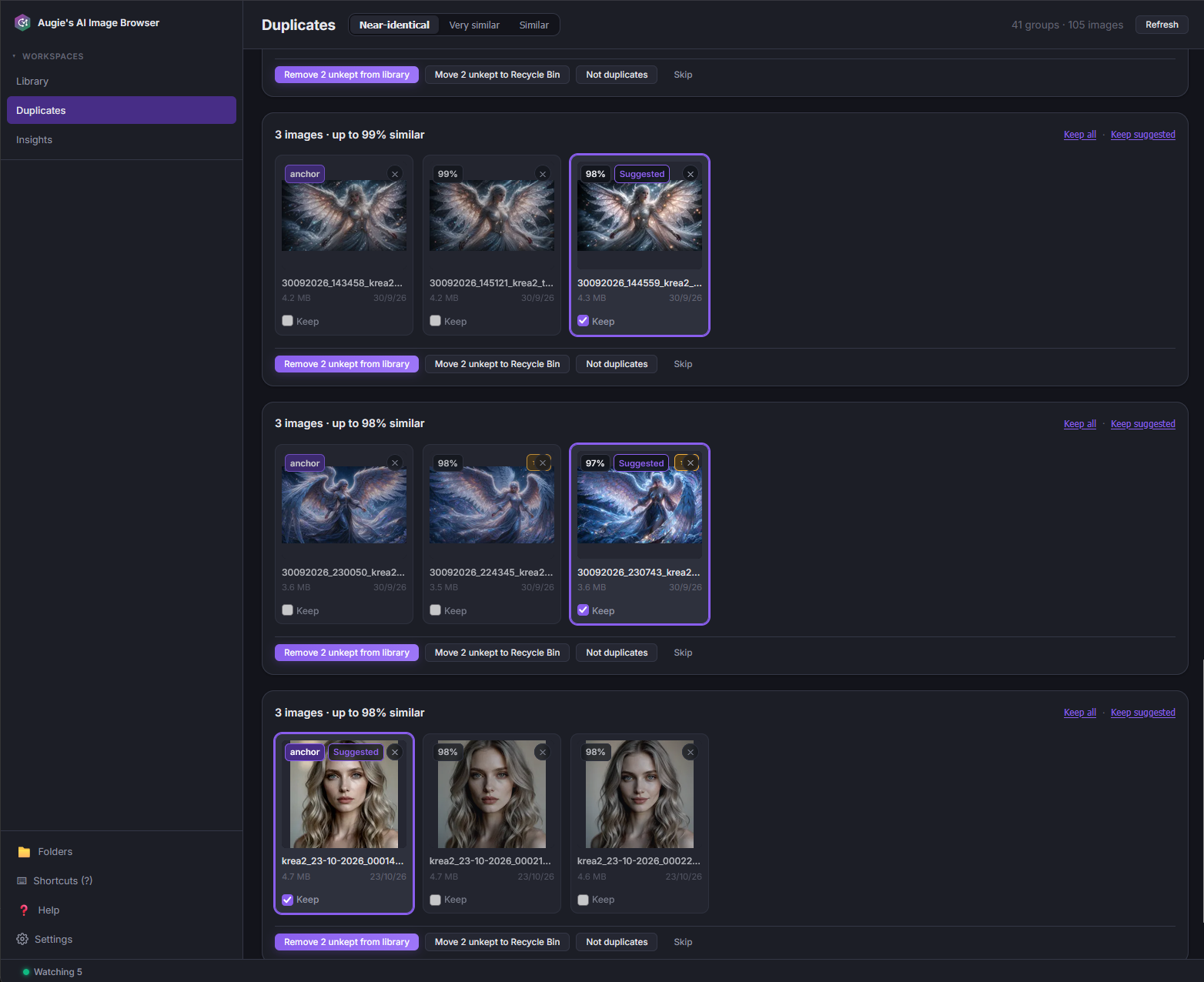
The Duplicates workspace groups images that look the same or nearly the same, such as re-runs with a different seed or the same image saved twice. It needs the SigLIP 2 search model (set up the models).
- Open Duplicates in the sidebar.
- Choose how strict to be: Near-identical, Very similar or Similar. The summary shows how many groups and images were found.
- In each group, tick Keep on the images you want to keep.
- Choose what to do with the rest:
| Button | What it does |
|---|---|
| Remove n unkept from library | Removes them from the library; the files stay on disk |
| Move n unkept to Recycle Bin | Moves the files to the Recycle Bin |
| Not duplicates | Never shows this group together again |
| Skip | Moves on without changing anything |
How it works
- What is compared: Each image's AI search fingerprint (made by the SigLIP 2 search model from the thumbnail; for videos, a thumbnail frame). Images must be indexed first; images marked missing are skipped.
- Strictness: Near-identical = 97% similar, Very similar = 95%, Similar = 92%. Stricter finds fewer, closer matches; looser also catches re-runs with small changes.
- How groups form: The image with the most matches anchors a group; a group holds up to 24 images; an image appears in only one group; pairs you mark with "Not duplicates" are never grouped together again.
- Suggested keeper (ticked for you): Highest star rating, then images marked Keeper, then the largest file, then the most recently modified file. You can change the ticks.
- Order: Groups with the most images come first, then the most similar.