Folders & offline drives
Remove or relink folders, and how offline drives and missing files are handled.
Open 📁 Folders in the sidebar to see the folders in your library. Each folder has ⚡ Index (scan it again), Relink… and ✕ (remove), plus Watch for new files.
Removing a folder
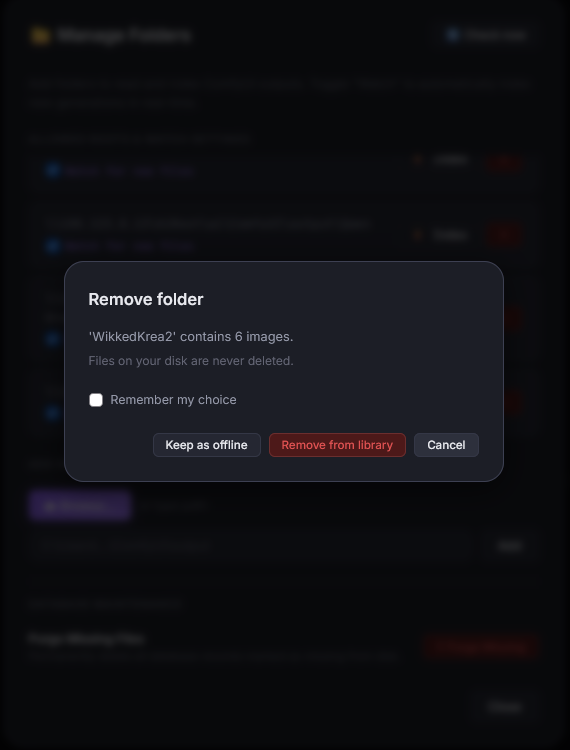
Click ✕ next to a folder. The app asks what to do with its images:
- Keep as offline: the images stay in your library, greyed out, with their tags, ratings and collections. Handy if you've moved the folder or plan to bring it back.
- Remove from library: the images, and their tags and ratings, are removed from the library.
Files on your disk are never deleted either way. Tick Remember my choice to skip the question next time; change it later in Settings → Storage & Files → When removing a folder.
Offline drives and network folders
If a folder can't be reached (an unplugged USB drive or a network share that's down), the app notices at startup and every few minutes after. Its images show an Offline badge and are greyed out, and the folder shows Unreachable. When the drive is back, they come back online by themselves. To check straight away, click 🔄 Check now in Folders.
Opening an offline image tells you its folder is offline instead of showing a broken image.
Relinking a moved folder
Moved or renamed a folder? Relink it so your tags, ratings and collections follow.
- In Folders, click Relink… next to the old folder (it's under Offline Folders if you removed it).
- Click Browse… and pick the new location.
- The app checks a sample of your images there and tells you how many it found. Click Relink.
If something's off, you'll see why, for example None of the images were found in that folder, or That folder is already in your library. If only some images were found, you can Relink anyway and the rest are marked missing.
Finding offline and missing images
Use the Availability filter (All, Online, Offline, Missing) to see them. Missing means the folder is fine but the file itself is gone.
In Settings → Storage & Files:
- Show offline images in library: untick to hide them from your normal views.
- Clean up offline images: removes all offline images from the library (the files aren't touched).