Getting started
Install Augie's AI Image Browser, add your first folder and see what it can read.
Augie's AI Image Browser finds the images and videos you've generated in ComfyUI, reads the settings used to make them, and lets you search, sort and organise them. Everything runs on your computer and it's free.
What it can read
| Images | PNG, WebP, JPEG |
| Videos | MP4, WebM, MOV, MKV |
| Metadata | ComfyUI workflows saved inside the file (prompt, model, LoRAs, sampler, steps, CFG, seed) |
Settings saved by other tools (such as AUTOMATIC1111 or Fooocus) aren't read yet, so those images appear without their prompt and settings.
Install and first launch
- Download the installer from app.augieinc.vip and run it.
- Open Augie's AI Image Browser. A short notice explains the anonymous usage statistics (never your prompts, files or file names). Click Got it, or turn them off any time in Settings → Privacy.
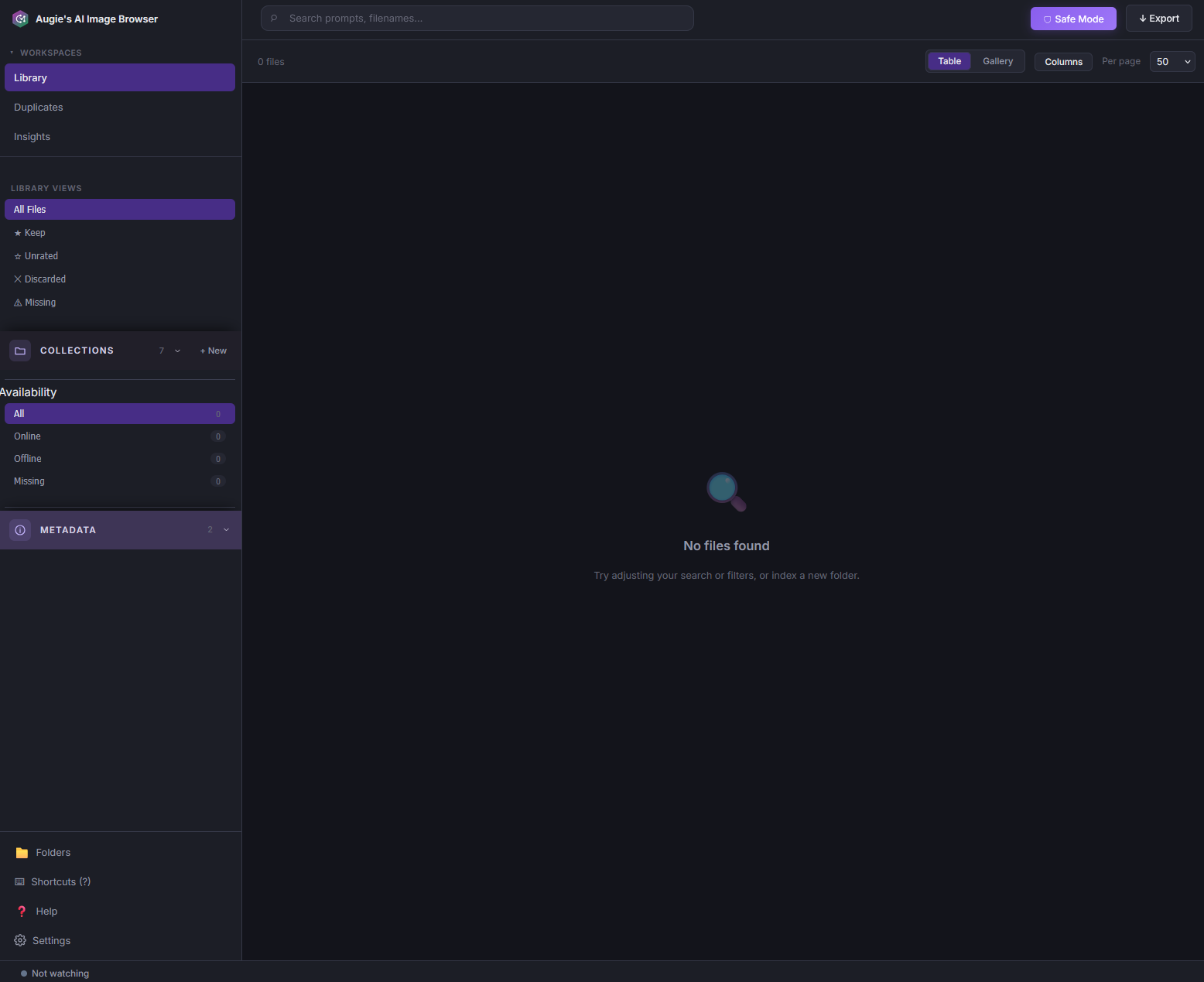
Add your first folder
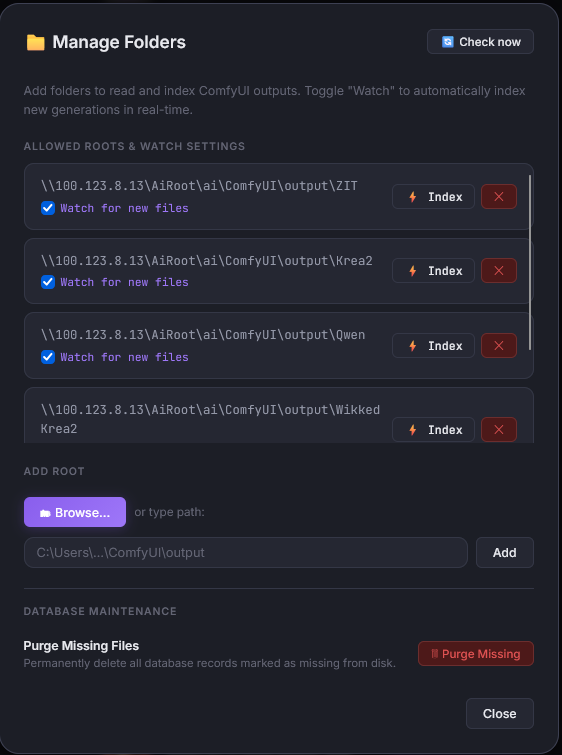
- Click 📁 Folders at the bottom of the left sidebar.
- Under Add Root, click 🗂 Browse… and pick the folder your images are saved in (for example your ComfyUI
outputfolder), or paste its path and click Add. - The app starts indexing straight away. A banner shows Indexing… with progress, and you can keep browsing while it works.
- When it finishes you'll see ✓ Finished index, with how many files were added.
Leave Watch for new files ticked and new images appear in the library as soon as ComfyUI saves them. You can add as many folders as you like, including network drives.
Where your data lives
Your library (tags, ratings, collections and the search index) is stored on your computer in %LOCALAPPDATA%\AugiesAiImageBrowser. Your original images are never changed or uploaded.
Next: A quick tour.