Browsing your library
Search, sort and filter your images, read their settings and select many at once.
The Library shows every image in your folders, newest first. Click an image to see its details; double-click to open it full size.
Search
Type in the search box to find images by prompt, negative prompt, file name, model or sampler. For searching by what's in the picture, see AI search.
Sort and view
- Switch between Gallery (thumbnails) and Table (rows with settings) at the top.
- Sort by Newest first, Oldest first, Rating: highest first or File size: largest first.
Filters
The filter panel narrows what you see. Filters combine, so SDXL + a LoRA + 5★ shows only images matching all three.
- Views: All images, ★ Keepers, ✕ Discarded, Unrated, Missing files
- Collections
- Formats: PNG, WebP, JPEG, MP4, WebM, MOV, MKV
- Checkpoint / Model, LoRAs, Samplers & Schedulers
- Tags, Quality score, Availability
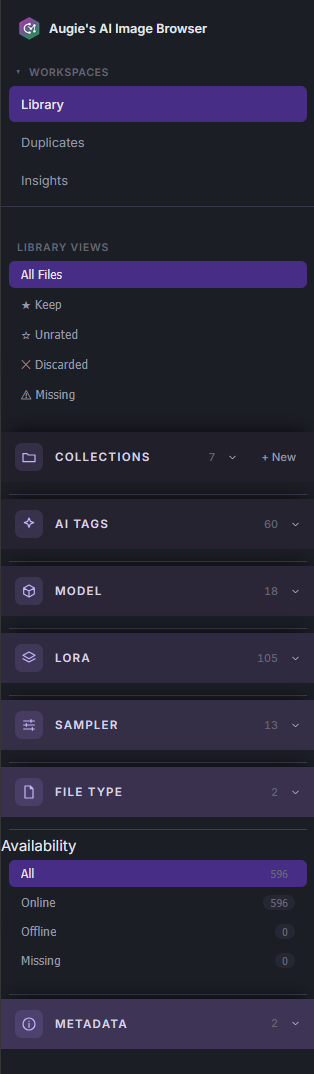
Image details
The detail panel shows the image with everything ComfyUI saved: prompt, negative prompt, sampler, steps, CFG, seed, model and LoRAs. From here you can:
- Copy prompt or Copy workflow JSON (paste the workflow straight back into ComfyUI)
- Open in folder or Open externally
- Rate, keep, discard, tag and add to collections (see Rating & curation)
Full-size viewer
| Key | Action |
|---|---|
| ← / → (or J / L) | Previous / next image |
| + / − | Zoom in / out |
| 0 | Fit to screen |
| 1 | 100% size |
| Esc | Close |
Selecting many images
Ctrl+Click adds or removes one image, Shift+Click selects a range and Ctrl+A selects the whole page. A bar appears with Add to collection, ★ Keep, ☆ Discard, Set rating, Export and Delete. Right-click any image for more options, such as Find similar.